The screen can look the same while the file changes
A screenshot is a raster image, not the live interface it captures. A high-density display can record more image pixels for the same visible layout. That is useful for sharp text, but the recipient may not need the full capture when reading a small preview.
Our PNG explanation covers screenshots in general. Here we use an interface drawn specifically for this experiment, without account details or third-party branding, to isolate the effect. Our upload guide explains what to check when a destination rejects a file.
A controlled capture, followed by actual compression
The capture on 2026-10-29 used the same locally rendered interface at 1× and 2× density. Doubling both width and height makes 4 times as many pixels; it does not imply a fixed file-size multiplier. Both captures were then processed by Bitinz at Balanced.
We kept one PNG output and one WebP conversion for each capture. Each setting was run 3 times to check that the output files were identical. Source files, hashes and output records accompany the experiment; the general method is described in our editorial policy.
Density and format, shown separately
Compare PNG with WebP at the same density first. Then compare the two source captures to see the separate cost of recording more pixels.
| Image | Pixels | Output | Level | Before | After | Saved |
|---|---|---|---|---|---|---|
interface-1x.png | 800 × 500 px | PNG | Balanced | 42.8 KB | 13.3 KB | 68.8% |
interface-1x.png | 800 × 500 px | WebP | Balanced | 42.8 KB | 11.1 KB | 74.1% |
interface-2x.png | 1600 × 1000 px | PNG | Balanced | 101.5 KB | 30.6 KB | 69.9% |
interface-2x.png | 1600 × 1000 px | WebP | Balanced | 101.5 KB | 27.6 KB | 72.8% |
Bitinz · 1 KB = 1000 bytes.
Text is the useful inspection area
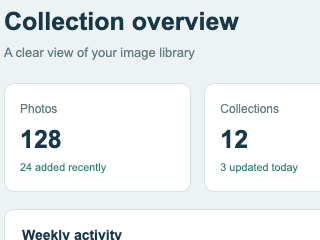
Source PNG detail
Compressed PNG detail
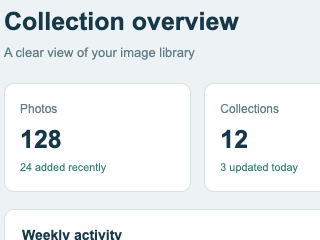
Small text, narrow lines and lightly shaded panels deserve more attention than a large blank background. Inspect the crop at full size, then view the screenshot at the width where a reader will actually encounter it.
A smaller WebP is useful when the destination accepts it and the lettering stays clear. When the screenshot must remain a PNG, the compressed PNG is the direct comparison. Keep text in the page as real text whenever a screenshot is not necessary.
Choose what the reader needs to see
Before uploading, crop away irrelevant surroundings in an editor. That is a content decision, separate from compression: it reduces distraction as well as pixels. Keep the context needed to understand the instruction, such as the relevant control and its nearby label.
A documentation page may need a sharp high-density image that can be enlarged. A chat preview may need only the relevant region. Test the actual destination instead of reducing every screenshot to the same dimensions.
Use the PNG compressor for a PNG delivery requirement, or try PNG to WebP for your own website. Compare both with the original; the format choice should follow readability and destination support.
Prepare a readable screenshot
- Capture only the interface and context the reader needs.
- Keep the source PNG and compress a copy.
- Compare the lettering and thin lines at full size and at the intended display width.
- Use the lighter acceptable file in the format the destination supports.
FAQ
- Does a 2× screenshot have twice as many pixels?
- If both width and height double, the image contains 4 times as many pixels. The resulting file-size ratio also depends on the image content and format.
- Should I always convert screenshots to WebP?
- Use WebP when the destination accepts it and its text remains clear. Keep PNG when it is required or when it gives a more useful result for your screenshot.
- Does Bitinz crop or resize the screenshot?
- Cropping and resizing are preparation steps for an image editor. Bitinz processes the file at the dimensions you upload.